How to identify your first find
Step-by-step walkthrough of the DetectID identification flow — from signing in, through photo upload, optional fields, location precision, to the result page.
DetectID’s identification engine is designed to feel as close as possible to handing your find to a knowledgeable friend across the kitchen table. Here’s the full walkthrough — from sign-in to the first identified coin in your collection.
Before you start
You’ll need an account (free, no card required), your phone or a computer with a recent browser, and one or more photos of the find on a fairly plain background.
If you’ve never signed in, go to app.detectid.co.uk/auth/login, type your email, and click the magic link we send. There’s no password to remember — we send a one-tap link to your inbox each time you sign in.
Step 1 — Go to Identify
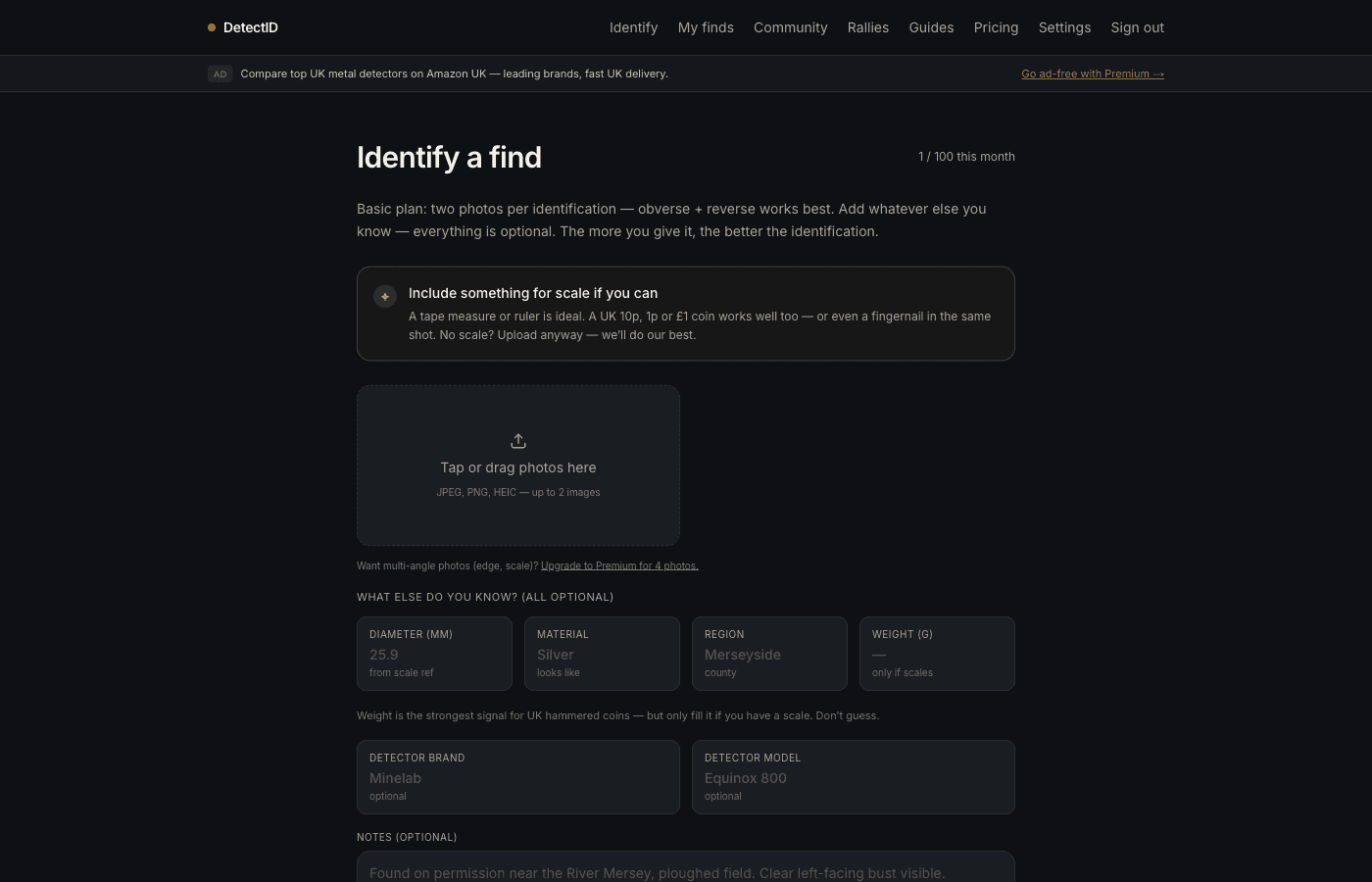
Tap Identify in the top navigation, or go straight to app.detectid.co.uk/identify. You’ll see your remaining identifications for the month at the top right.
- Free plan: three identifications per month, one photo per find.
- Basic plan: 100 per month, two photos per find (obverse and reverse).
- Premium plan: 200 per month, up to four photos per find for awkward or multi-angle shots.
Step 2 — Upload your photo(s)
Tap the dashed upload area and pick photos from your camera roll, or drag and drop on desktop. Files can be JPEG, PNG, or HEIC (iPhone format). Photos are processed server-side — resized, EXIF stripped, and sent on to the identification engine.
Step 3 — Optional details
Everything in “What else do you know?” is optional. The engine works fine without it — but a single accurate measurement can rule out a whole century of confusable issues.
The fields, ranked by usefulness
- Weight (g).Strongest signal for hammered silver. A 1.4 g penny is a long cross or short cross; a 0.6 g penny is a farthing fragment. Only fill it in if you have scales — do not guess.
- Diameter (mm).Useful when paired with weight or when weight is missing. Use a ruler or callipers if you have them; otherwise the engine will estimate from the photo’s scale reference.
- Material.“Silver”, “Bronze”, “Copper alloy”, “Gold”. Use your best judgement — the engine reads patina and corrosion well, but if you’re sure it’s silver, say so.
- Region.County or rough area — useful for regional issues (Welsh marches, Scottish border, East Anglian mints).
- Notes.Anything that doesn’t fit above — soil conditions, what came up nearby, dimensions of features visible. The engine reads these.
Detector brand + model
Two more optional fields below: tag the detector you used (Minelab, XP, Nokta, Garrett, Quest, Whites and others are suggested). This doesn’t affect identification — it’s for your own records and powers the upcoming brand leaderboard. Set it once and it pre-fills on every future upload.
Step 4 — Location (optional but recommended)
Expand the “Location (optional)” accordion to drop a pin. Tap on the small map to mark the find spot, then pick a privacy precision:
- Exact — visible only to you.
- 1 km grid — snaps to a 1 km square, with a privacy circle. Recommended.
- 10 km grid — rough region.
- County only — no map dot, tagged with county.
- Hidden — completely off the map.
EXIF GPS from your photo is strippedat upload — DetectID never uses it. If you want a pin, you place it yourself. See Privacy and location precision for the full story.
Step 5 — Submit and wait
Tap Identify a find. The page switches to a streaming progress view where you’ll see the engine’s reasoning appear live. Most identifications take 30 to 60 seconds. Don’t close the tab.
Step 6 — The result page
When the engine finishes, you land on a result page with the top candidate at the top, an expandable reasoning chain showing the steps that led to that verdict, alternative candidates if any, a predicted grade, and a Treasure Act flag if relevant.
From here you can save the find to your collection (Basic and Premium), share it publicly, or upload another. We’ve written a separate walkthrough on reading the result page in detail — see Understanding your identification result.
What to do if the verdict feels off
Two situations come up regularly:
- The engine asked for better photos.The result page will tell you what’s missing — usually the reverse, an edge shot for thickness, or a clearer focus. Retake and re-upload (it counts as a new identification).
- You disagree with the call.Look at the alternatives — the engine often surfaces the right one as the second candidate. If both feel wrong, the reasoning chain will show which diagnostic features it’s reading; a missing or misread one usually explains it. You can submit again with extra hints (weight, region) and a better photo.
Costs and quotas
Each successful identification counts against your monthly quota. Failed runs (engine couldn’t produce a result) don’t count. Your quota resets at the start of each calendar month. If you run out on Basic or Premium and need more, top-up packs are available — see /pricing.
Next steps
- Got the result? Read Understanding your identification result.
- Want better photos next time? Photographing finds for identification.
- Ready to share it publicly? Sharing finds publicly and the community feed.
Try DetectID on a real find
Upload a photo and we’ll return a calibrated shortlist with period, denomination, ruler and full reasoning chain.
Identify a find